|
| |
|

|
Catfish
|
|
Wollongong, Australia
Aug 2000
time: 14:30
|
|
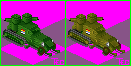
A discussion of 15-bit ToT units in the Speculative Units thread led to the proposal of applying 24-bit “skins” to existing 8-bit Nemo-style isometric units. I posted a few examples of recoloured units showing how you could quickly and easily create camouflage effects using textures from the Paint Shop Pro library. This perked the interest of Fairline and Curt Sibling and I was asked to detail the procedure.
I’ll be using Paint Shop Pro 8.01 to demonstrate the method, but the same technique can be used in Photoshop. The following assumes basic knowledge of PSP:
1. Open up your units file in PSP. If it uses the 8-bit Civ2 palette, go to the Image menu -> Increase Color Depth -> 16 Million Colors (24-bit). In this example, we’ll use Nemo’s Panther tank.

2. Isolate the unit you want to work on if it’s in a large units file. Copy and paste as a new image. You’ll want to make the image background uniform – it makes it easier to select the parts of the unit you want. Most units have magenta (#FF00FF) and purple (#875487) backgrounds. Use the Color Replacer tool with tolerance 0 to ditch one of them.
3. Using the Magic Wand tool with tolerance 0, select all the background (magenta) areas.
4. Hit Ctrl-Shift+I to create an inverse selection. Now only the unit should be selected.
Note: You can also select units using Ctrl+A and then heading to the Selections menu -> Modify -> Select Color Range… Change the reference colour to magenta, tolerance to 0, softness to 1, and check Subtract Color Range.
I’ve added a script to make it easier to select units from the transparent background colours. You can download it here. Simply extract it into your C:\Program Files\Jasc Software Inc\Paint Shop Pro 8\Scripts-Restricted folder (default path). You will find a new script called UnitSelection in the Script toolbar. Select it, hit run and there you go. It will select units from most Civ2 units backgrounds without having to first modify them.
5. Before recolouring, you’re going to have to deselect parts of the unit you don’t want modified. For example, in the tank unit shown below, you don’t want to recolour the shadow, tracks, machine gun, exhausts or insignia. Use Magic Wand to select/deselect large areas of uniform colour, like shadows, and the Selection tool for more intricate parts. There’s no real way around this. Just hold down Shift to add to a selection or Ctrl to remove from a selection when you’re working with these tools.

6. At this stage there is a whole bucket load of effects you could apply to the unit, many of which I’ve never tried. However, for this example, I’ll stick to a basic recolour and texture.
7. Go to the Adjust menu -> Hue and Saturation -> Colorize… You will be presented with a dialogue box. For most military vehicles, I suggest using a Hue value within the range of about 10-70 (brown to green). For the Saturation value, I’d suggest anything up to about 60 – it depends how strong you like your colours. Hit OK and the current selection will change colour. If you do this in 8-bit colour, the whole image will change.

8. Now we want to add some fancy camouflage effects using textures. PSP has 52 default textures located in C:\Program Files\Jasc Software Inc\Paint Shop Pro 8\Textures (default path) – you can add more if you want. Go to the Effects menu -> Texture Effects -> Textures… You will be presented with a dialogue box like the one below:

9. For this example I chose the Bark texture, sized at 84% and applied a light brown colour (#D7C9C9), with the remaining settings left on default values. The result is shown below. My suggestion is experiment! I would recommend that you don’t use a Depth value greater than 1 and that any texture colours should be very light.

10. Paste the selection back on top of the old unit and you’re done.

11. Some of you may want to use these units for regular 8-bit Civ2. If you do so, then you must load the Civ2 palette. Obviously there’ll be a loss of quality. For those who don’t know how to load the Civ2 palette: open a regular Civ2 graphic file (stick to units.gif – there are a few palette variations around) and go to the Image menu -> Palette -> Save Palette… Call it something meaningful like Civ2. Open your 24-bit graphic, go to the Image menu -> Palette -> Load Palette… and select Civ2. Done.
Edit: Corrected colour depth and added selection method - see Mercator's comments below.
Last edited by Catfish on 21-09-2003 at 09:33
|
|
| |
|
|
|
techumseh
|
 |
of the frozen North.
Apr 1999
time: 22:30
|
|
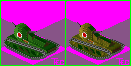
OK, I downloaded the trial version of PSP 8.0. Here's my first effort with Catfish's technique. The unit is an Austin-Pulitov armoured car converted to a half-track. It's one of the units from the upcoming ToT scenario "Warlords of China, Struggle for Unity - 1916-1937". The one on the left was done in the original Civ2 palette. The one on the right has been "catfished". 
 Attachment: aphalftrack.png Attachment: aphalftrack.png
This has been downloaded 153 time(s).
Last edited by techumseh on 19-09-2003 at 12:45
|
|
| |
|
|
|
Catfish
|
|
Wollongong, Australia
Aug 2000
time: 14:30
|
|
quote:
Originally posted by techumseh
OK, I downloaded the trial version of PSP 8.0. Here's my first effort with Catfish's technique. The unit is an Austin-Pulitov armoured car converted to a half-track. |
It's a great unit techumseh, but I'm not sure if the texture filter is terribly useful here. It's a technique better suited to creating mottled or striped camouflage patterns. The second unit looks more like a straight recolour than a camo version.
I don't really have a shading technique for improving the plain metal isometric units. It's probably a pixel by pixel job. Someone like Fairline would be more useful to you here.
quote:
Originally posted by fairline
Can't wait for your gfx conversion guide |
If I write anything about photo conversions, it won't be a straight tutorial like the one above. There are no hard and fast rules about creating units - the source material is too variable and often simple trial and error is my method. Of course there are some filters I use regularly and others I hardly touch. So it will probably consist of a list of tips or ideas.
|
|
| |
|
|
|
Catfish
|
|
Wollongong, Australia
Aug 2000
time: 14:30
|
|
quote:
Originally posted by techumseh
The AP 1/2 track actually has some texture, although it's pretty subtle. I tried a more aggressive camo, but it distorted the appearance, esp. the round turrets. Even so, the process adds a lot of depth to the color scheme. |
Yeah, well that's how I started doing it. I wanted to create a kind of "fake" depth to existing units - obviously all 2-D graphics have fake depth, but you get the drift. I got the idea about applying textures to ToT units after working on much larger tileable textures for another game. In this case, I was blending a greyscale texture layer with a coloured one. Experimentation is the key.
quote:
Originally posted by Mercator
ToT graphics are NOT 24-bit, but "only" 15-bit. That's still 32768 colors though. |
I didn’t invent this figure – I’m sure I read it somewhere. If it’s erroneous, as you say, I’ll correct it in the guide. Originally, I thought it was 16-bit – Harlan Thompson told me that around 4 years ago.
quote:
Originally posted by Palaiologos
Why is this supposed to be effective on ToT only? |
I don't recall saying ToT only. Point 11 mentions using them for standard Civ2, but as Mercator says, there will be a loss of detail. The results of the procedure are likely to be less effective.
Last edited by Catfish on 21-09-2003 at 11:07
|
|
| |
|
|
|
Mercator
|
 |
Sorekara no Nanimo
Jan 1970
time: 06:30
|
|
quote:
Originally posted by Catfish
I didn’t invent this figure – I’m sure I read it somewhere. If it’s erroneous, as you say, I’ll correct it in the guide. Originally, I thought it was 16-bit – Harlan Thompson told me that around 4 years ago. |
The standard ToT bitmaps seem to be 16-bit. Regular graphics programs can't save bitmaps as 16-bit, so they save as the usual true color, 24-bit images. ToT can also read those, but it reduces its colors.
I said it seems to be 16-bit, because there's one superfluous bit. In the sprite files, this extra bit is used to add a civilization color mask. Plus, 15-bit is a much more intuitive number, because that leaves 5 bits for each of the three colour channels, Red, Green and Blue.
There's one very easy way to demonstrate the 15-bit nature of the graphics...
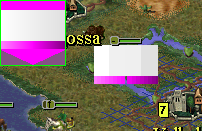
Have a look at the attached unit. In the top-left corner you'll see the original, as in the units bitmap, the rest is a screenshot of how it actually looks in the game.
Notice especially that the exact transparent magenta shade (#FF00FF) does not appear in the purple gradient.
But I'll have to say, to the graphics creators this really shouldn't matter much at all. The only thing where it makes a difference is when you try using colors close to the transparent colors. The near magenta #FF01FF, for instance, is transparent as well.
quote:
Originally posted by Palaiologos
There is a difference. The minute you paste that gfx to a bmp with the 8-bit MGE pallete it looses some of its quality. |
Never simply past full color images into paletted images! Use the method Catfish described in steps 1 and 11.
Attachment: tot-colors.png
This has been downloaded 120 time(s).
Last edited by Mercator on 20-09-2003 at 20:46
|
|
| |
|
|
|
Catfish
|
|
Wollongong, Australia
Aug 2000
time: 14:30
|
|
Modified the procedure to accommodate Mercator's comments. Also added a PSP script to make it easier. So if anyone's copied the old one, please update.
|
|
| |
All times are GMT. The time now is 05:30.
Apolyton Time is 00:30. |
top of page
|
| archivepost |
|
Forum Rules:
You may not post new threads
You may not post replies
You may not post attachments
You may not edit your posts
|
HTML code is ON
vB code is ON
Smilies are ON
[IMG] code is ON
|
|
|
|
|
|





 19-09-2003 06:45





 |
|